Saved Layouts
Keep several named workspaces and switch between them from the navbar - one layout for intraday, another for options, another for research.
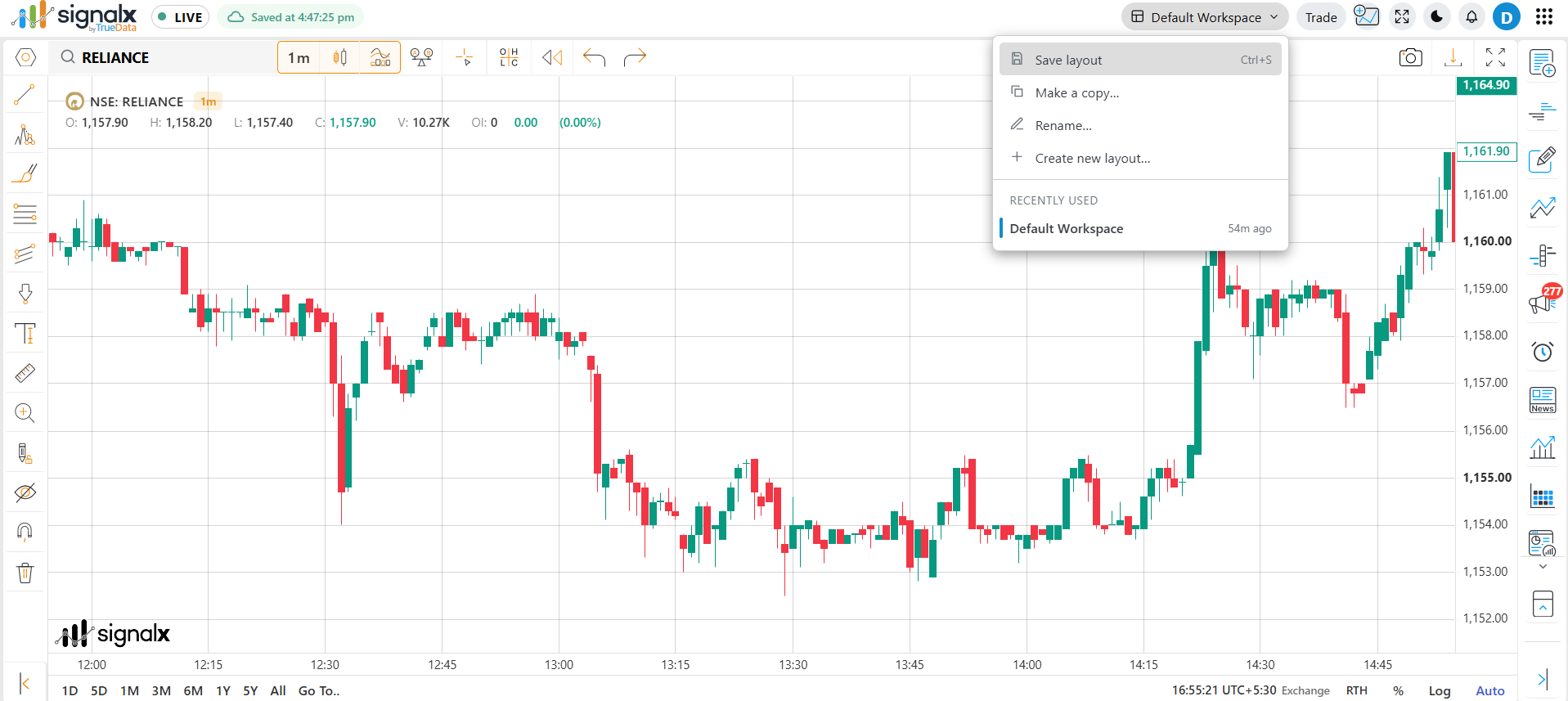
Using Layouts
1
Choose Fixed or Dock on first run
The first time you open SignalX, pick between the Fixed and Dock layouts. You can change this later for any layout.
2
Switch layouts from the navbar
Open the layout menu in the navbar to see all your saved layouts and switch between them in one click.
3
Save your changes
Use Save from the layout menu, or press Ctrl+S, to store the current arrangement in the active layout.
Layout Actions
Action · Description
New - Create a fresh named layout
Copy - Duplicate the current layout as a starting point for a variation
Rename - Change a layout's name
Delete - Remove a layout you no longer need
Save (Ctrl+S) - Store the current charts and arrangement in the active layout
What a Layout Keeps
Its own charts
Each layout remembers its own set of charts, so switching layouts brings back exactly what you had open.
Fixed / Dock mode
Every layout stores its own Fixed or Dock mode, so you can mix both styles across layouts.
Panel arrangement
The positions and sizes of your panels are saved with the layout.
Shared watchlists
Watchlists are not tied to a layout - all layouts use the same watchlists.
Use Copy to build a variation of a layout you like - for example, duplicate your intraday layout and change just the symbols and timeframes for swing trading.