Switch to Dock Layout
Rearrange SignalX panels into a fully customisable docked workspace - drag, split, tab and resize Watchlist, Option Chain, TS Window, Chart and every other widget to match your workflow.
Choosing a Layout on First Load
"Choose your workspace layout" screen
The first time you open SignalX, you are asked which workspace layout you want to start with. Pick one and click the button at the bottom to continue. You can switch between layouts any time later.
Fixed Layout
Ready-made chart grids with the watchlist alongside. Pick a preset and start trading right away. Includes multi-chart presets, a pinned watchlist and quick setup.
Dock Layout
Free-form workspace. Drag, split, tab and resize charts and panels anywhere you like.
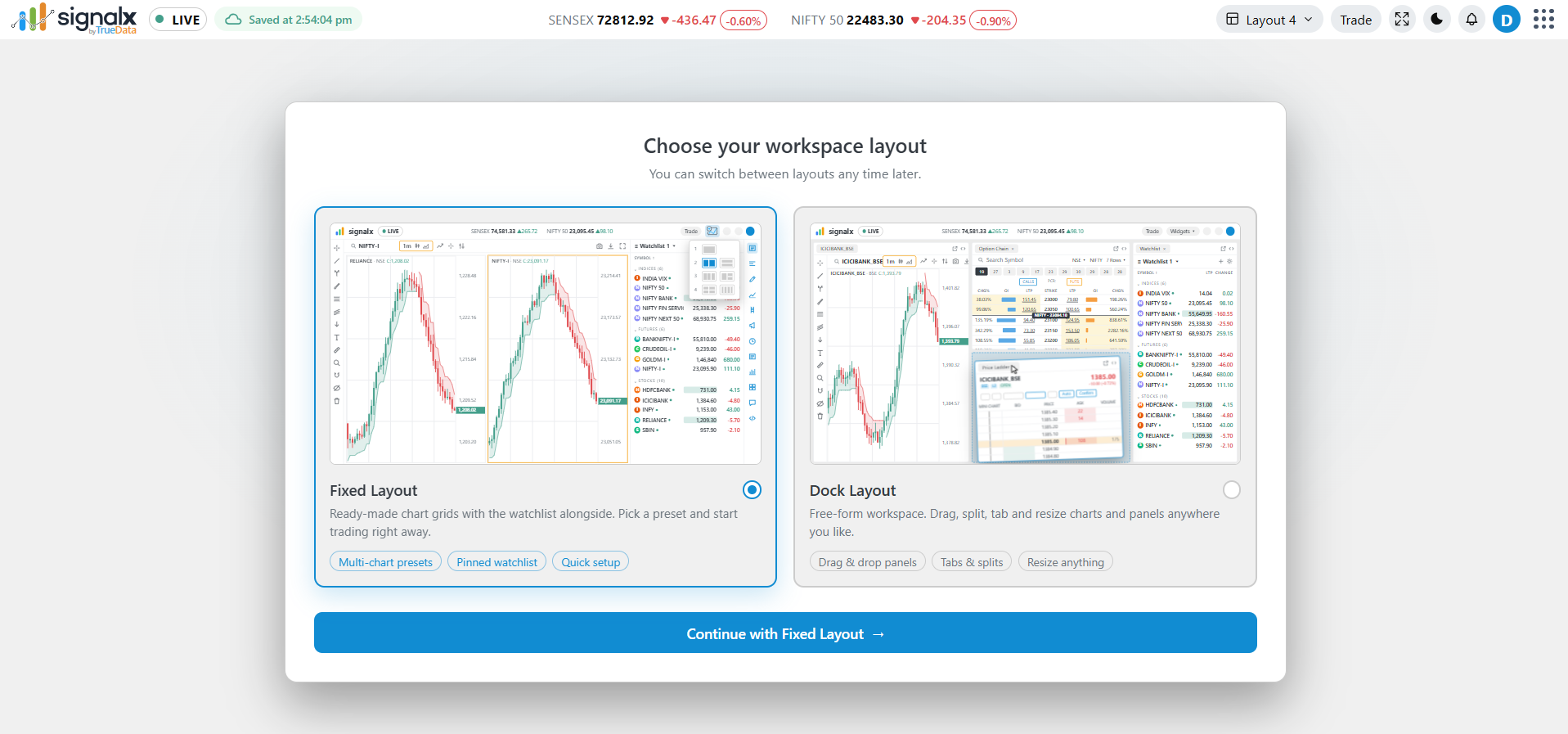
Choose Dock Layout and the button changes to "Continue with Dock Layout".
Switching Layouts Later
Once you have made your first choice, you can change layout at any time from either of these places:
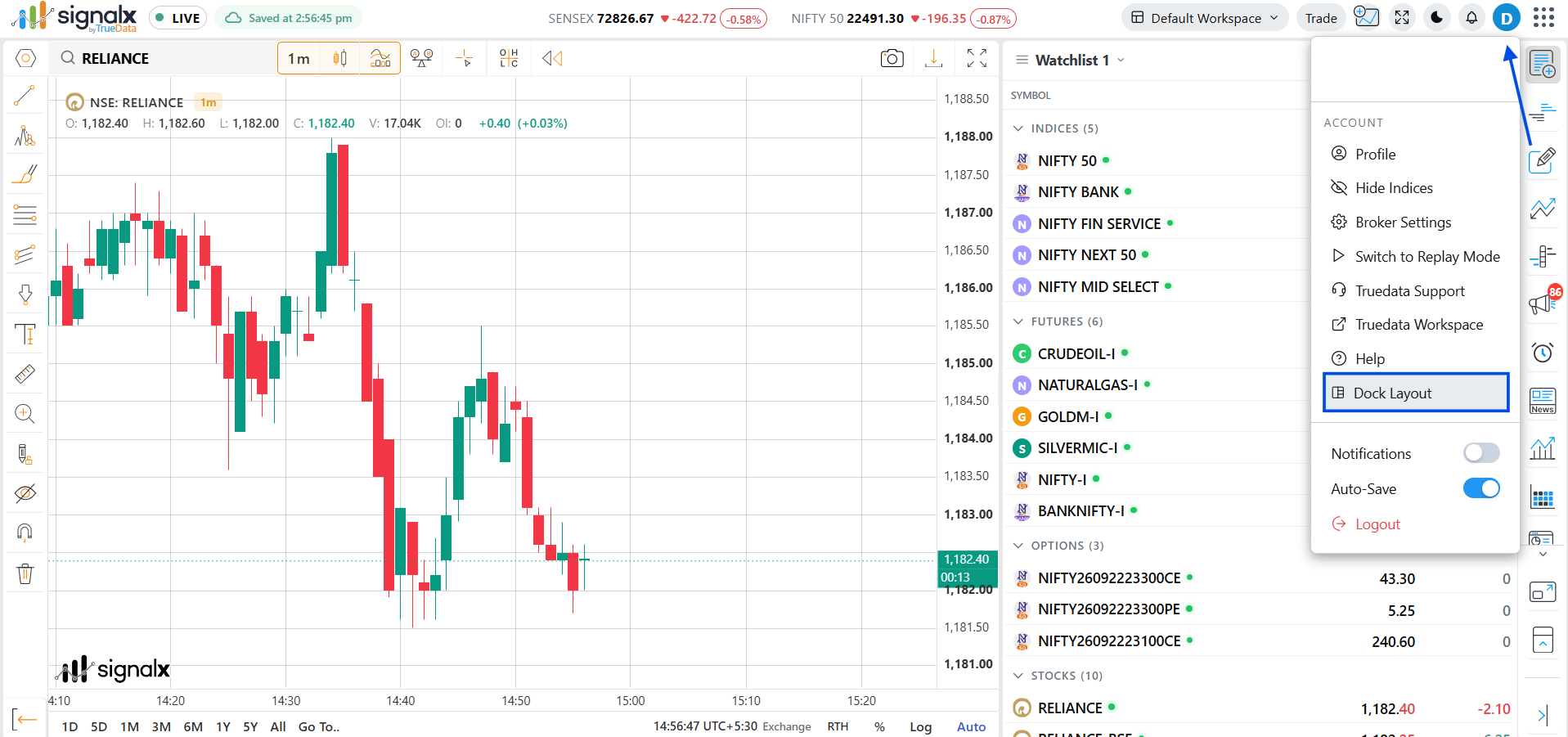
Widgets Menu
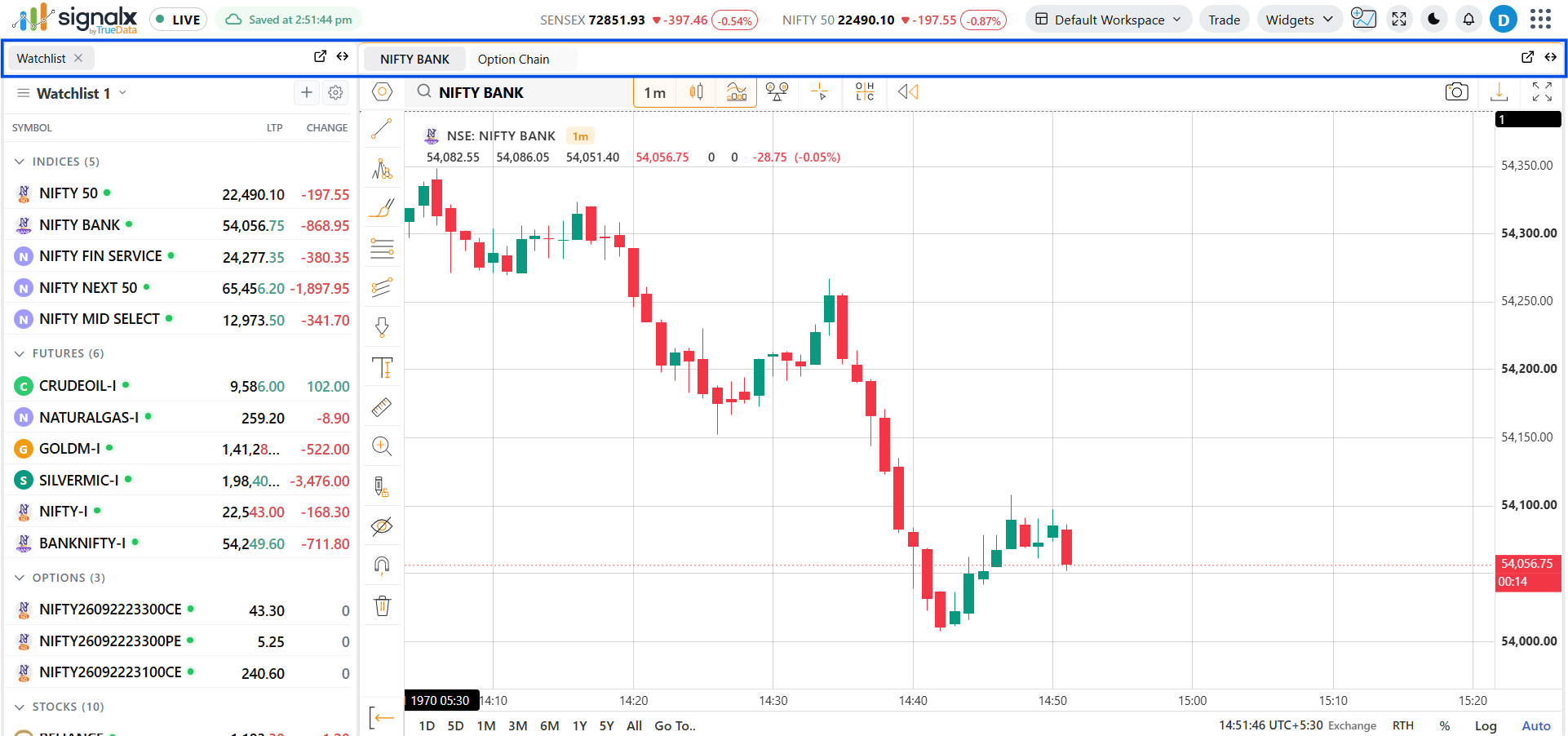
In Dock Layout, the Widgets button in the top bar gives you everything that lives in the right sidebar in Fixed Layout. Click any item to open it as a panel in your workspace, then dock, tab or float it wherever you want.
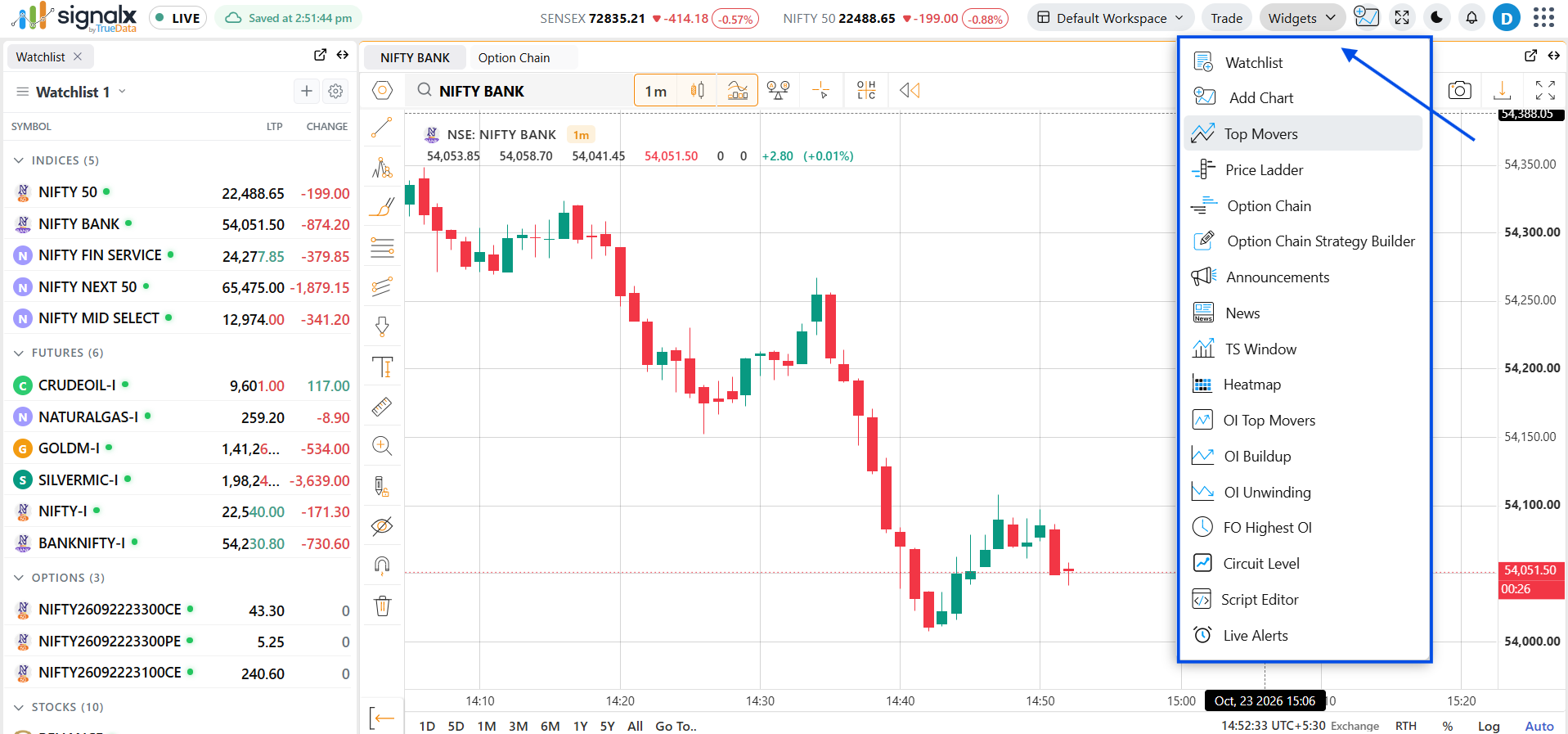
Click Widgets in the top bar, then click any item below to add it to your workspace.
Watchlist
Track your symbols with live LTP and change.
Add Chart
Open an additional chart panel.
Top Movers
See the biggest gainers and losers.
Price Ladder
Market depth ladder for quick order placement.
Option Chain
Calls and puts by strike, with OI, LTP, CHG% and Greeks.
Option Chain Strategy Builder
Build multi-leg option strategies from the chain.
Announcements
Corporate announcements and updates.
News
Market news feed.
TS Window
Time and sales / tick-level activity.
Heatmap
Colour-coded view of market performance.
OI Top Movers
Symbols with the largest open interest changes.
OI Buildup
Symbols where open interest is building up.
OI Unwinding
Symbols where open interest is unwinding.
FO Highest OI
F&O contracts with the highest open interest.
Circuit Level
Upper and lower circuit levels for symbols.
Script Editor
Write and manage your own scripts.
Live Alerts
Create and monitor price and condition alerts.
Switching back to Fixed Layout? The same tools are available from the right sidebar.
Arranging Panels in Dock Layout
Three moves are all you need: add a panel, drag it by its title tab, and drop it on a highlighted zone.
What each drop zone does
Top
Panel sits above.
Bottom
Panel sits below.
Left
Panel sits to the left.
Right
Panel sits to the right.
Centre
Joins as a tab.
Switching Back to Fixed Layout
Same switch, either direction
Use the layout switch in the top bar, or open the profile menu (top-right corner) and select "Fixed Layout", to return to the original locked left/right panel arrangement at any time. Switching back and forth doesn't discard a saved dock arrangement - SignalX remembers your last docked setup and restores it the next time you switch to Dock Layout.
Dock Actions
Float a panel
Use the pop-out icon in a panel's header, or drag the panel outside the workspace, to detach it into its own floating window - useful for multi-monitor setups.
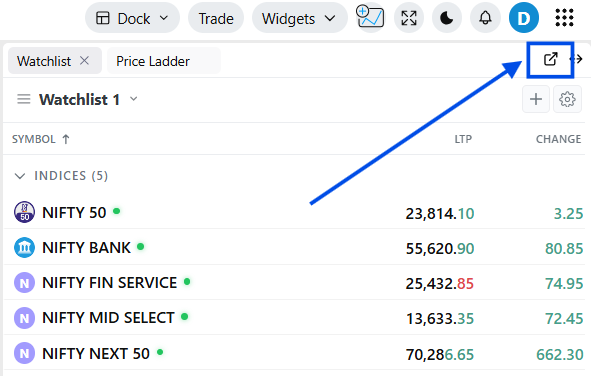
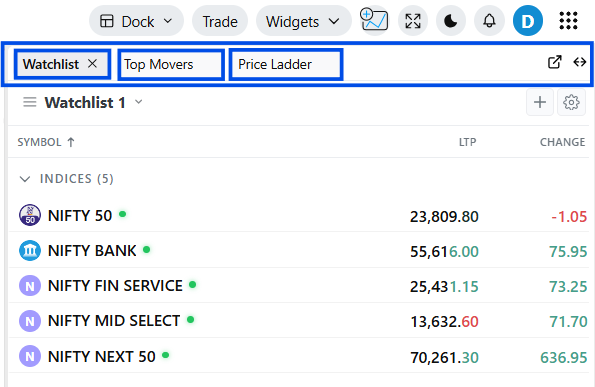
Stack panels as tabs
Drop a panel onto the centre of another to combine them into a single tabbed group, saving screen space.
Resize any panel
Drag the border between any two docked panels to resize both simultaneously.
Saving and Managing Workspaces
Workspace menu in the top bar
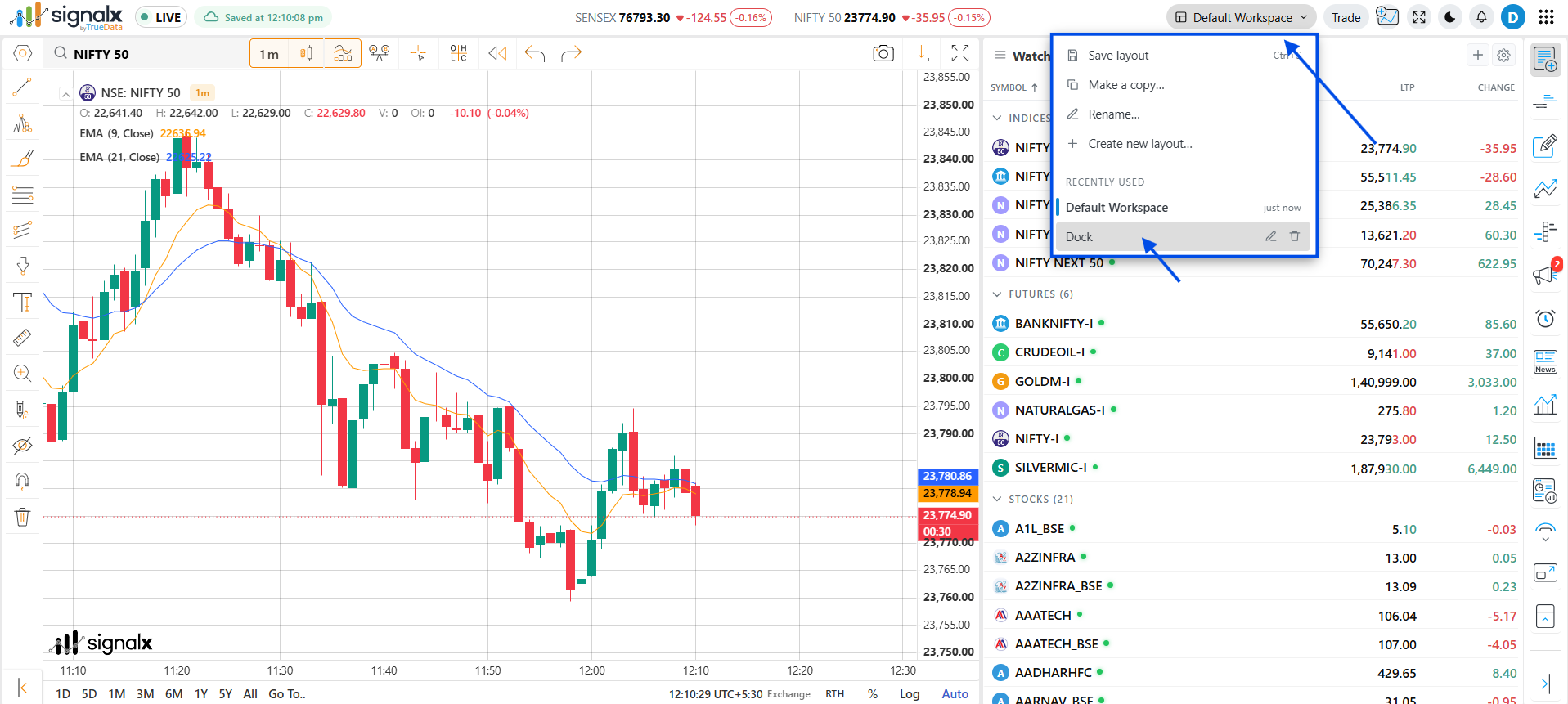
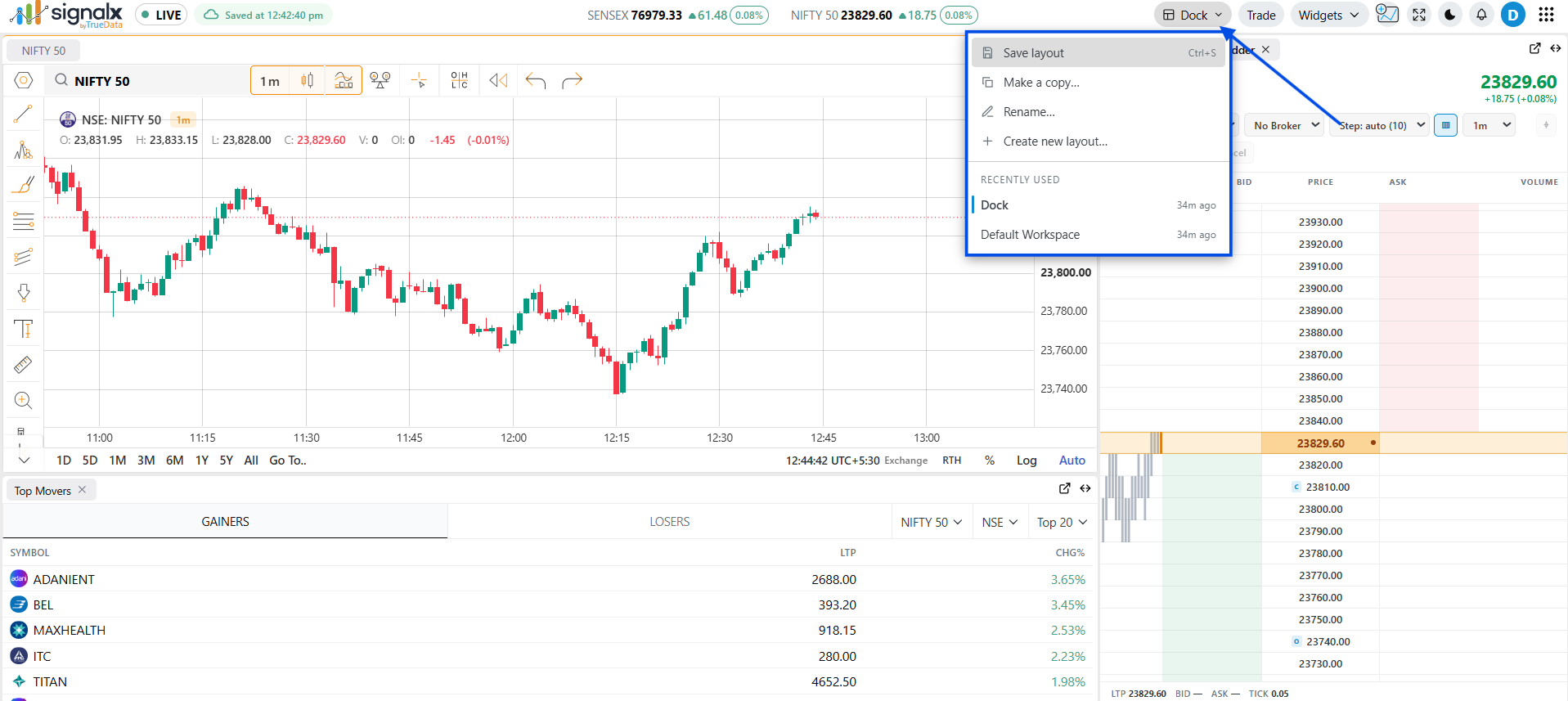
Your arrangement is saved automatically - the "Saved at" indicator at the top shows when it last synced. For more control, open the workspace name dropdown (for example "Default Workspace") in the top bar:
- Save layout - save the current arrangement instantly (Ctrl+S).
- Make a copy - duplicate the current workspace as a starting point for a variation.
- Rename - give the workspace a meaningful name.
- Create new layout - start a fresh workspace, for example one for options and another for charting.
- Recently used - jump back to any recent workspace; rename or delete from the same list.
Options traders often dock Option Chain and TS Window side-by-side above a wide chart panel - arrange it once, save it as its own workspace, and it'll be there whenever you switch back into Dock Layout.