Live Data Sessions
Your plan streams live data to one window at a time. Learn why you see the "Live data is open in another session" popup, how to move live streaming to the window you are using, and how to read the status indicators.
What Is a Live Data Session?
A live data session is the connection that streams real-time prices to SignalX. Your plan allows one live data session at a time, so only one browser or device can receive live ticks while the others stay paused.
One Active Stream
Charts, watchlists, option chain and scanners all share the same live stream in the window that holds control.
Any Browser or Device
The limit applies across browsers and devices - for example Chrome on your desktop and Edge on another computer.
Switch Any Time
Control moves with one click. Nothing is lost - your layout, charts and watchlists stay exactly as they were.
This is not an error. SignalX is simply asking which window should receive live data.
When Do You See the Popup?
SignalX shows the "Live data is open in another session" popup when you load it while another window already holds the live stream.
Opening a Second Browser
You log in to SignalX in another browser (for example Edge) while it is already live in Chrome.
Opening Another Device
You sign in from a different computer or device while your first session is still open.
The popup appears on first load of the new window. The window that was already open keeps streaming until you choose to move control.
Taking Control in This Window
When the popup appears, this window is paused. The popup shows the other session as Active and this window as Paused. Choose what you want to do.
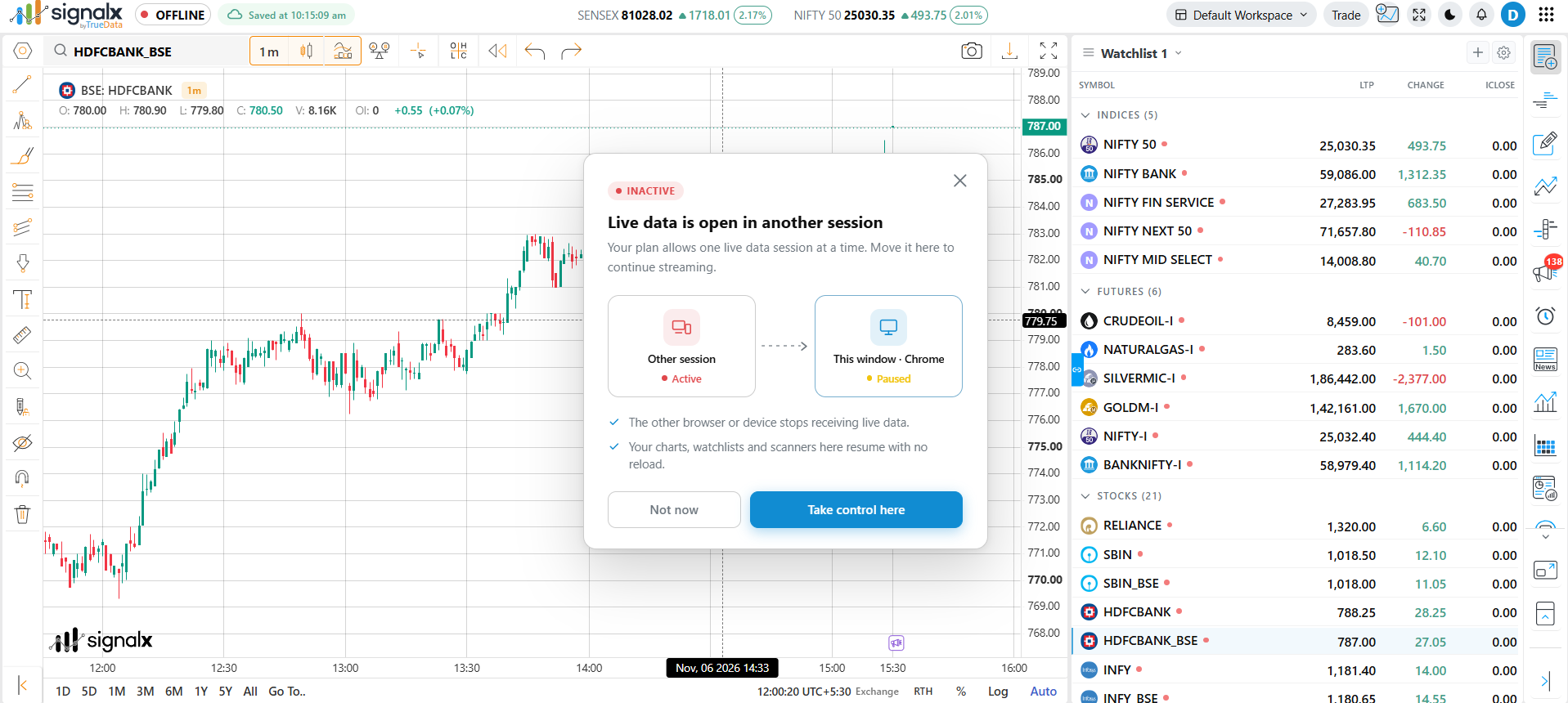
Take control here
Moves live streaming to this window. The other browser or device stops receiving live data. Your charts, watchlists and scanners here resume with no reload.
Not now
Closes the popup and keeps this window paused. The other session stays active. Prices in this window show "-" and the status stays OFFLINE.
Steps
Open SignalX
Load SignalX in the browser or device you want to use now.
Read the Popup
Confirm the other session is Active and this window is Paused.
Click Take control here
Live data starts streaming in this window within moments.
If the other session was left open by mistake, just click Take control here. You can switch back the same way from the other window.
Live in This Window
After you take control, SignalX confirms the switch. The other session shows as Disconnected and this window shows as Live.
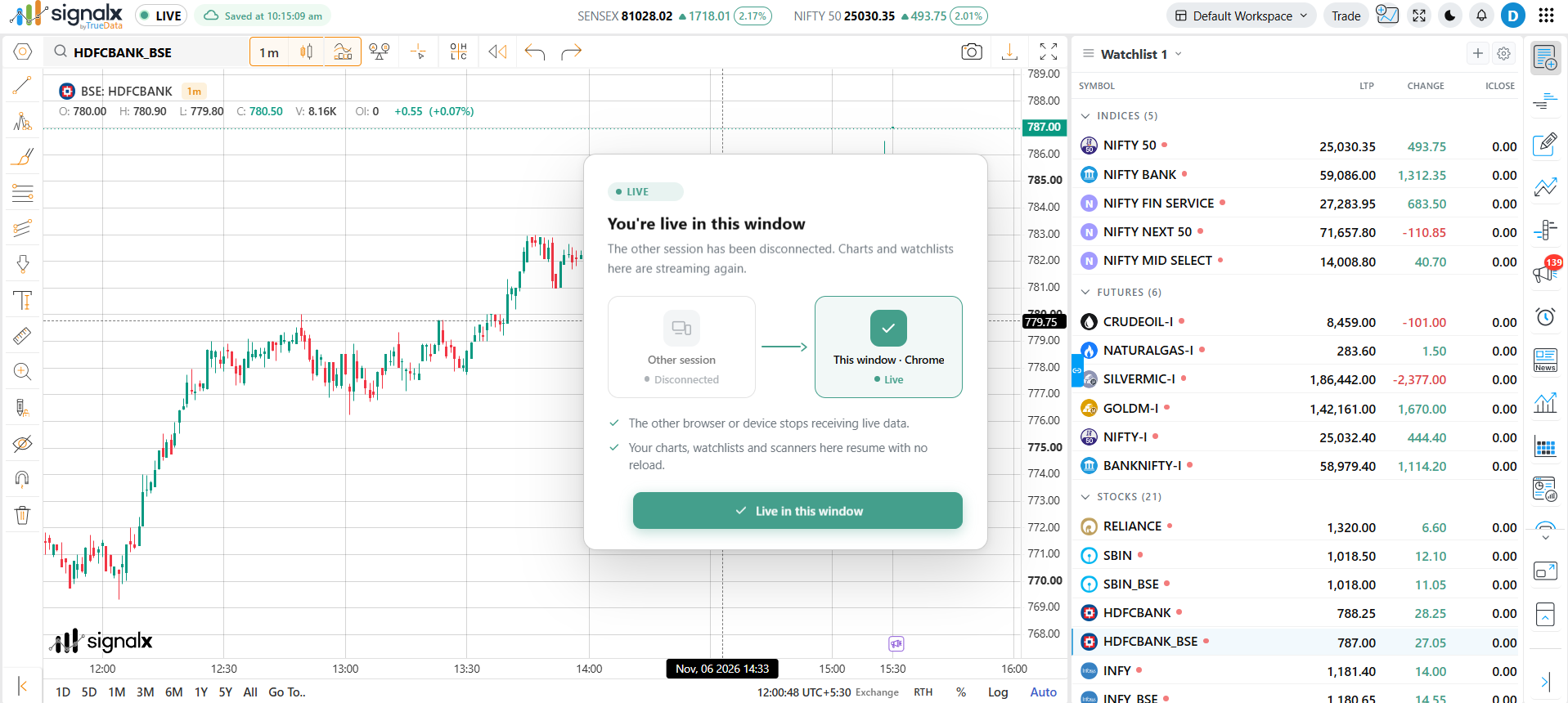
Streaming Resumes
Charts, watchlists and scanners in this window stream again with no page reload.
Other Session Disconnected
The other browser or device stops receiving live data until it takes control again.
Your Setup Is Safe
Layout, indicators, drawings and watchlists are unchanged by the switch.
Click "Live in this window" on the confirmation to dismiss it and continue trading.
Reading the Status Indicators
The status badge in the top bar and the labels inside the popup tell you which window is streaming.
LIVE (green)
This window is streaming. Prices, change and index values update in real time.
OFFLINE / INACTIVE (red)
This window is paused because another session holds control. Prices show "-".
Paused (yellow, in popup)
Shown under "This window" while it waits for you to take control.
Disconnected (grey, in popup)
Shown under "Other session" after you take control - it no longer receives live data.
If prices show "-" and the badge says OFFLINE, check whether SignalX is open in another browser or device, then use Take control here.
Common Questions
Quick answers to what users ask most about live data sessions.
I don't remember opening another session
An old tab, another browser or another device may still be open. Take control here and the other session will disconnect.
Will I lose my charts or drawings?
No. Switching control only moves the live stream. Your workspace, charts and watchlists stay as they are.
The popup closed but prices are still "-"
You chose Not now, so this window is still paused. Reload SignalX and click Take control here when the popup appears.
Can I stream in two windows at once?
Not on a single-session plan. Only one window receives live data at a time.
Need more than one live session? Contact TrueData support to ask about plans that allow additional sessions.