Favourites & Quick Access
Skip repetitive setup with symbol and indicator favourites - star what you use most and get instant access every time you open the search or indicator library.
Symbol Favourites
Save frequently used symbols to a personal favourites list directly from the symbol search popup - accessible anytime via a dedicated Favourites tab in the same popup.
Open the symbol search
Click the symbol search bar at the top of the platform to open the search popup. Type any NSE / BSE / MCX symbol name or code.
Star the symbol
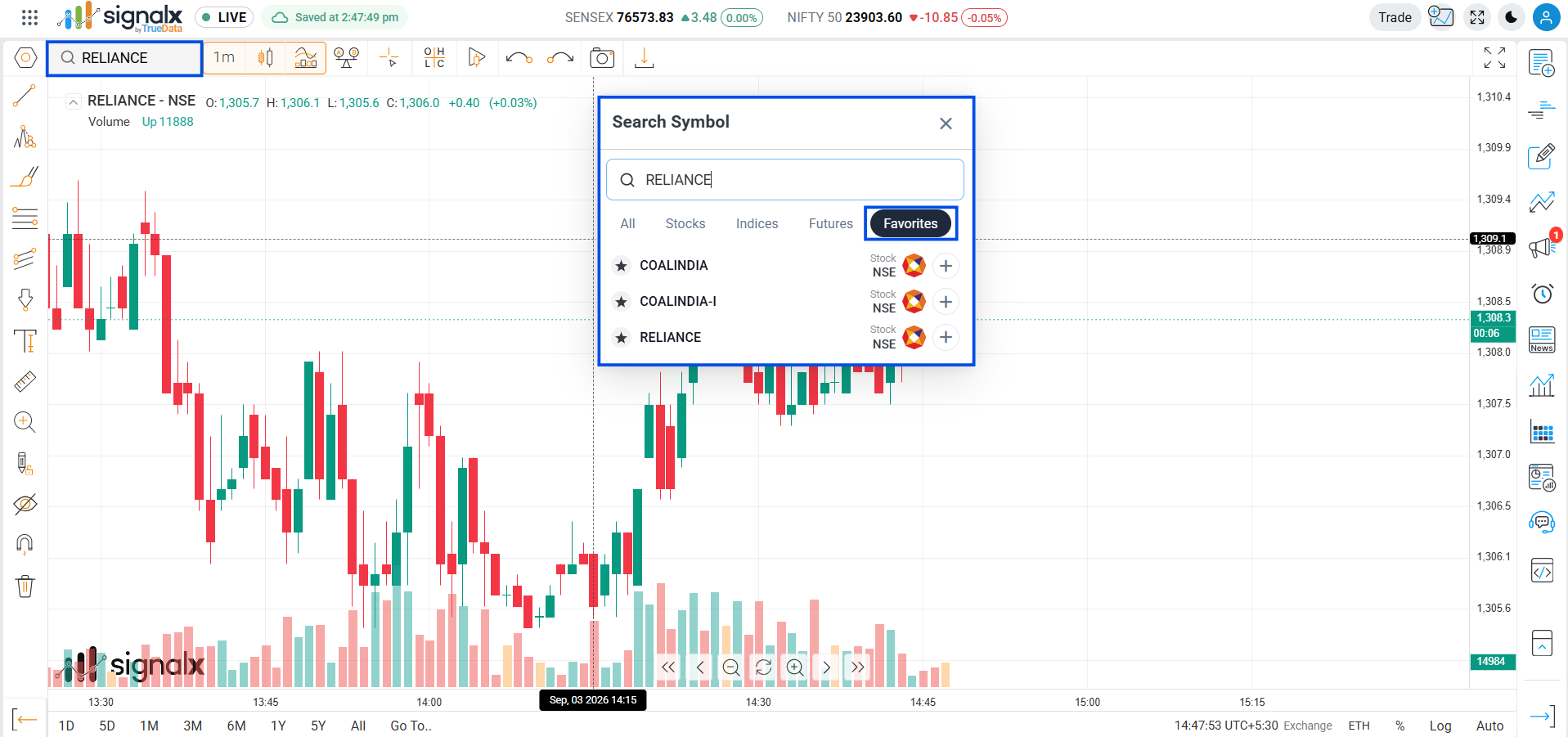
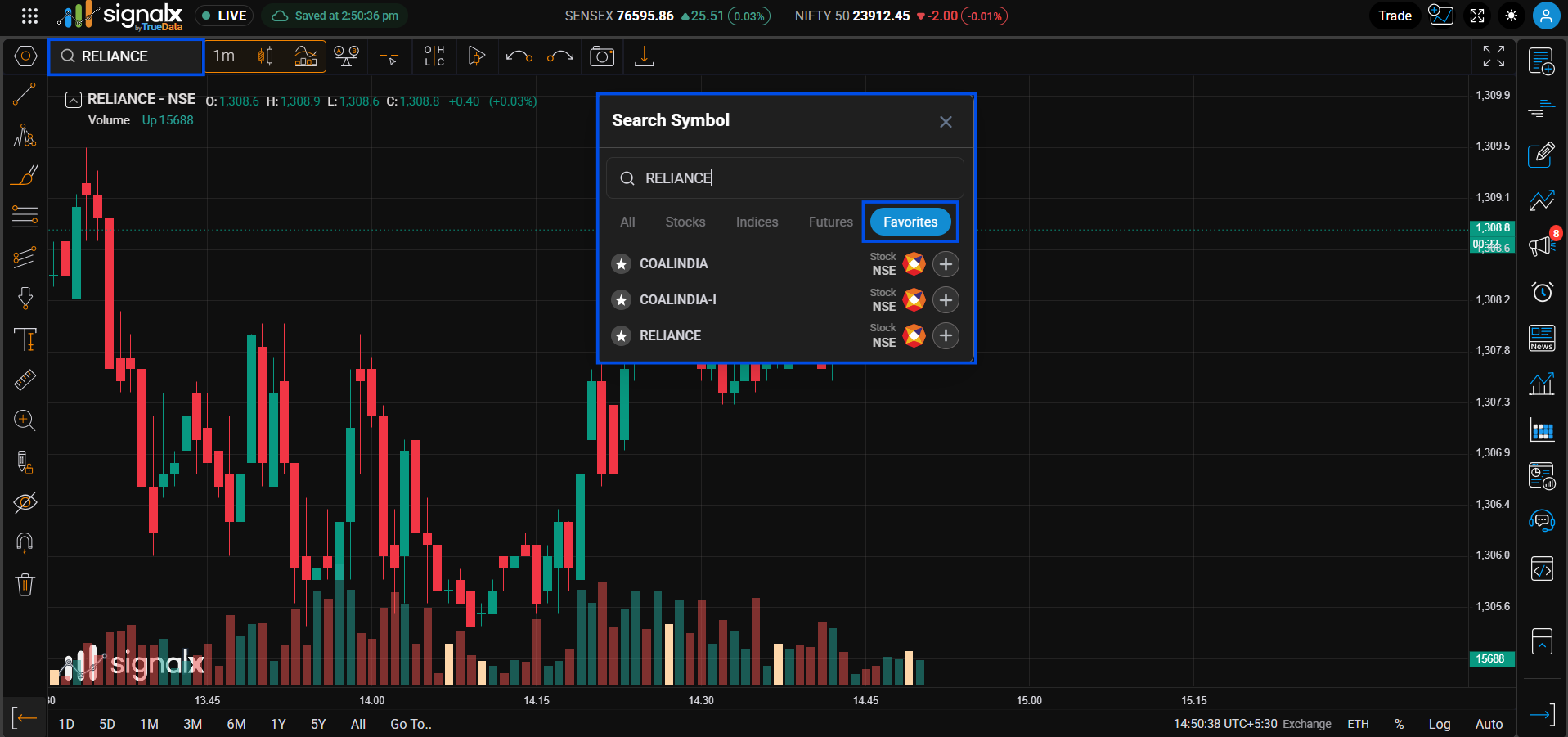
Each symbol row shows a star icon on the left. Click it to mark the symbol as a favourite - the star fills solid black to confirm it's saved. This is separate from the "+" button on the row, which adds the symbol to a watchlist instead.
Open the Favourites tab
Inside the symbol search popup, switch to the Favourites tab alongside All, Stocks, Indices, and Futures. All starred symbols are listed here with instant access - no need to search again.
Load chart instantly
Click any symbol name in the Favourites tab to load it directly on the main chart canvas. Timeframe, indicators, and drawings are preserved.
Persistent across sessions
Favourited symbols are stored to your account and reappear every time you open the symbol search.
Star vs. Add
The star favourites a symbol for quick recall in this popup. The separate "+" button on the same row adds it to a watchlist - the two are independent actions.
Remove a favourite
Click the filled star again on any symbol row to un-favourite it instantly. It's removed from the Favourites tab immediately.
Works across segments
Favourite stocks, indices, and futures contracts alike - each favourited row shows its segment (e.g. Stock, NSE) so you can tell them apart at a glance.
Use Favourites as your pre-market shortlist - star 8–12 setups the night before, then open the symbol search popup at market open and jump between them instantly from the Favourites tab.
Indicator Favourites
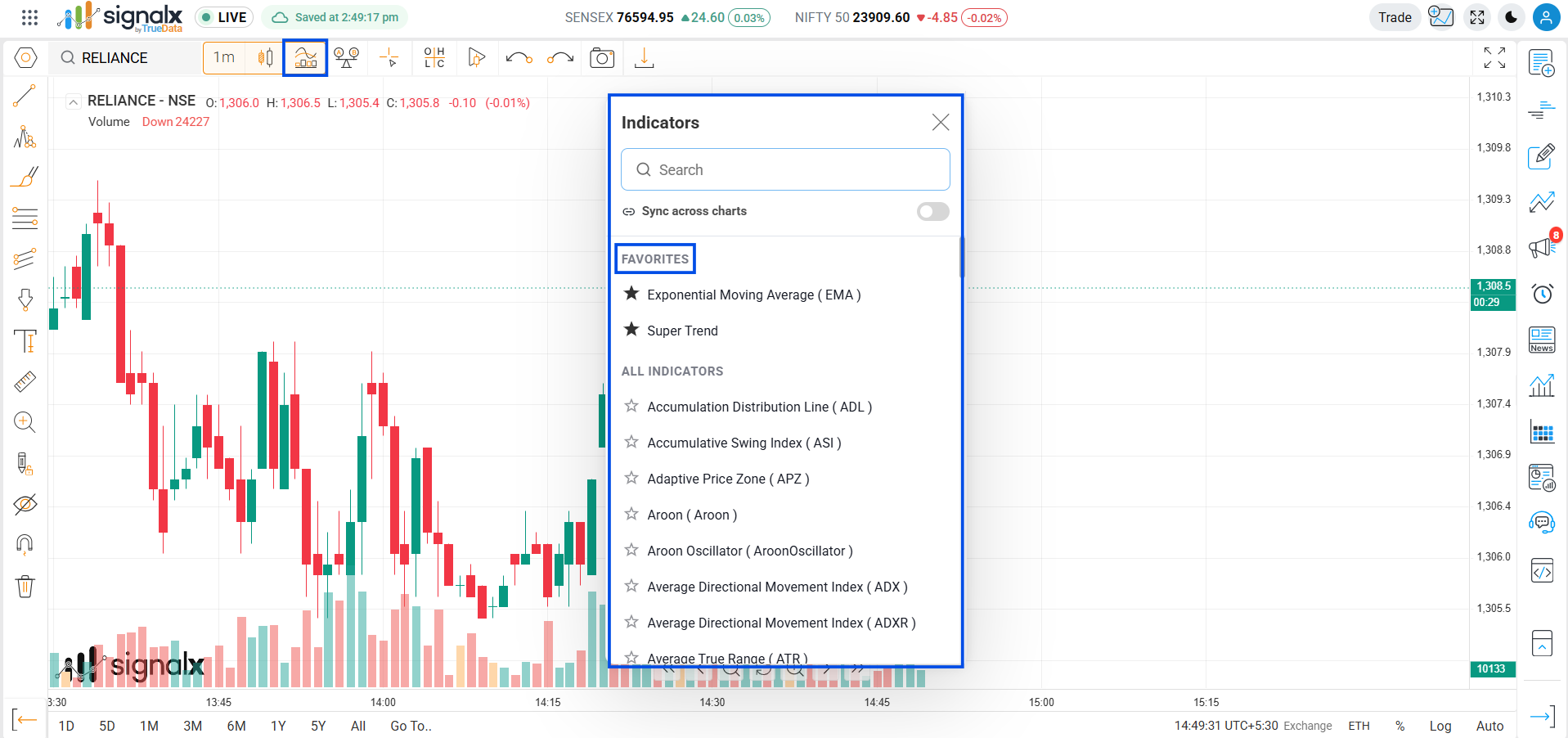
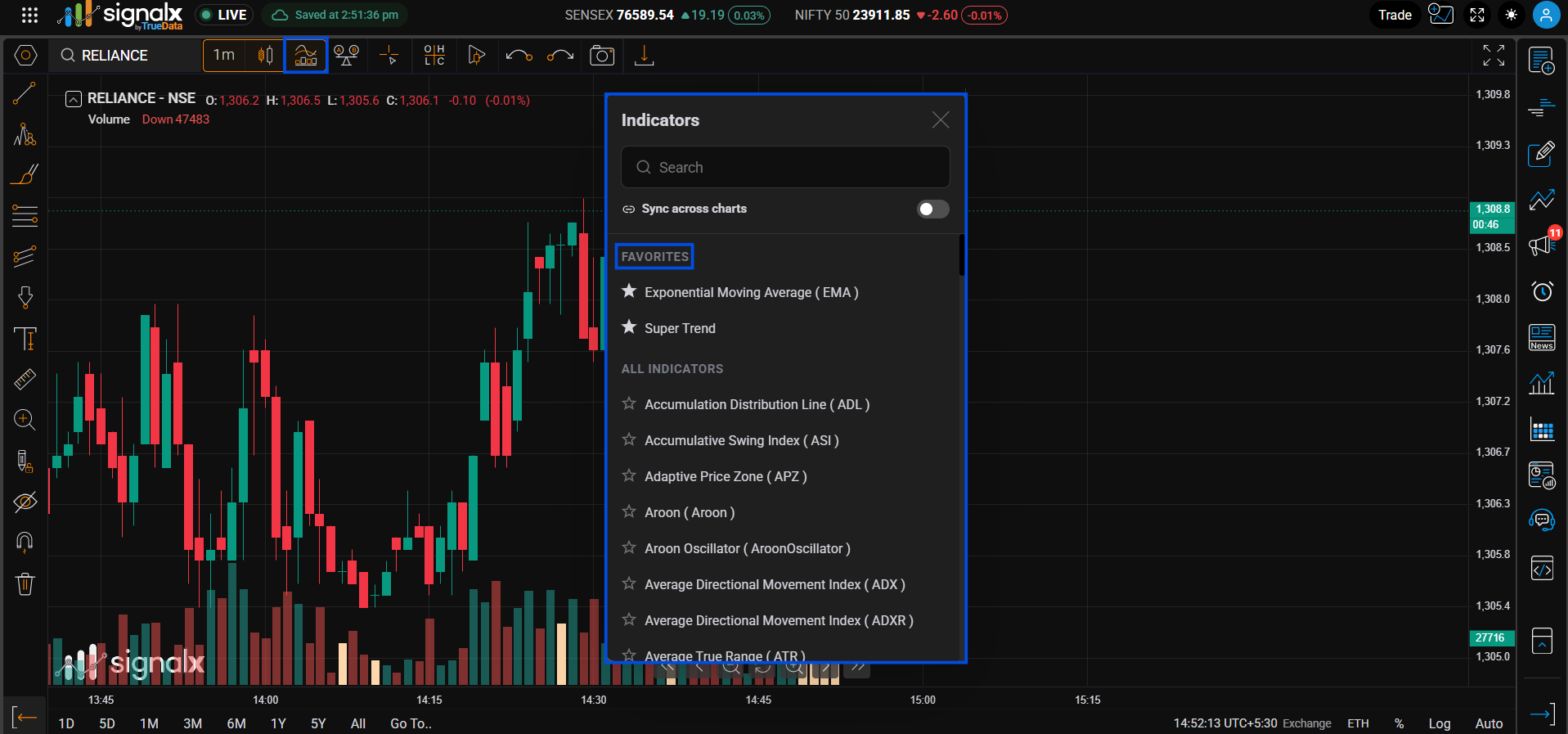
Pin your most-used indicators to a dedicated FAVORITES section at the top of the indicator library - a star icon on the left of every row lets you pin them instantly, so your go-to set is the first thing you see every time you open the panel.
Open the indicator library
Click the Indicators button in the top toolbar to open the indicator search panel.
Click the star on the left
Each indicator row has an outlined star icon on its left side, under the "ALL INDICATORS" list. Click it - it fills solid black and the indicator is immediately pinned.
Find it under FAVORITES
A "FAVORITES" section appears at the top of the panel, above "ALL INDICATORS." Starred indicators are listed there with a filled star, in addition to still appearing (also starred) in their normal place in the full list below.
Apply to chart
Click any indicator in the FAVORITES section, or use the "+ Add" button that appears on hover, to add it to the current chart.
One-click application
Instead of scrolling through the full indicator list each session, your pinned set is always waiting at the top under FAVORITES.
Still searchable
The search bar at the top of the panel filters both FAVORITES and ALL INDICATORS at once, so you can jump straight to any indicator by name.
Stack multiple indicators fast
Click your pinned indicators back-to-back in the FAVORITES section to layer all of them on the chart in seconds.
Unpin anytime
Click the filled star on any indicator row - in FAVORITES or in the main list - to toggle it off. It's removed from the FAVORITES section immediately.
Star your core indicator set - SuperTrend, VWAP, RSI, and EMA - so your chart is fully configured in under 10 seconds on any new symbol.
Working across multiple chart panels? See the Chart Sync page for how to keep crosshair, zoom, timeframe, symbol, and more synchronised across every open panel.