home Charts

Chart Events

Exchange filings and corporate actions plotted directly on the chart, so you can see what happened to a stock right at the candle where it mattered.
Chart Events in SignalX

Using Chart Events

1
Show or hide events from the right-click menu
Right-click on the chart and choose Show Events or Hide Events to turn the event icons on or off.
2
Find the event icons at the bottom of the chart
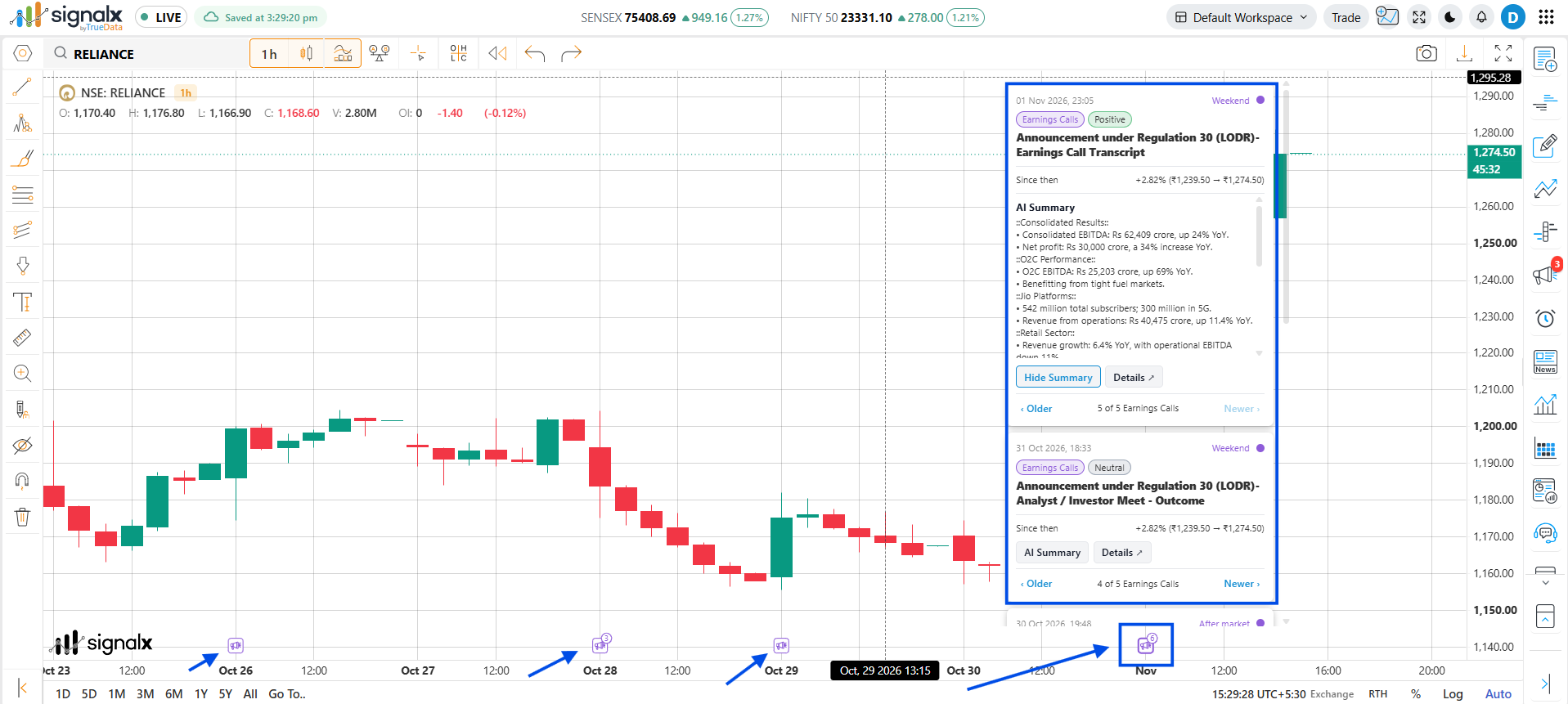
Event icons appear along the bottom of the chart, at the candle where each filing or corporate action took place.
3
Click an icon to open the event box
Clicking an event icon opens a box with the details of that event. Use the previous and next arrows to move through events without going back to the chart.
4
Tap AI Summary for the quick read
Click the AI Summary button inside the box to get a short summary of the filing, so you get the gist without reading the full document.
5
Click Details to go deeper
Click Details to be redirected to Wealth, where you can see more detail on the company, including all of its company data.

What an Event Box Shows

Event box in SignalX
Field · Description
AI Summary button - Click to get a short AI-generated verdict and summary of the filing
Details button - Redirects to Wealth for more detail on the company
Dividend yield - Shown on dividend events
Split / bonus ratio - Shown on split and bonus events
Countdown - Time remaining to an upcoming corporate action
Previous / Next - Move between events without closing the box

Why Use It

notifications_active

Announcements at the exact time

Whenever a company makes an announcement, an icon appears at the bottom of the chart at that time, so you can see exactly when it came out.

timeline

Connect news with price action

See at a glance how price behaved before and after an announcement, right on the candles around it.

auto_awesome

Understand it quickly

Click the icon and use AI Summary to get the gist of the announcement without reading the full filing.

open_in_new

Go deeper in one click

Details redirects to Wealth for more detail on the company.

tips_and_updates

Keep Show Events on while you trade - when a new icon appears at the bottom of the chart, click it to see what the company just announced.